
You might think you're being careful with your phone data, but the truth is, most of what drains it happens quietly in the background. Even when you're not scrolling or streaming, your phone can be running updates, refreshing apps, and sending information you don't actually need.
Those little processes add up fast, especially if you're on a limited plan. Knowing which settings are worth adjusting can keep your data from disappearing before the month's even halfway over.
Background app refresh
This setting is one of the biggest hidden data hogs. Apps like Facebook, Instagram, and weather trackers constantly update even when you're not using them, pulling new content in the background. It's meant to make opening them faster, but it eats through data without you realizing it.
Turn off background refresh for apps that don't need live updates. You can keep it on for essentials like messaging or navigation, but most others can wait until you're on Wi-Fi.
Automatic app updates
Automatic updates are convenient, but they can download huge files over mobile data. Some app updates are several hundred megabytes, and if you've got a few at once, that's gigabytes gone before you notice.
Switch your settings so apps only update when connected to Wi-Fi. You'll still stay current on security fixes and features, but without burning through your data plan in the background.
Video autoplay
Social media apps and browsers love to autoplay videos as you scroll, even if you don't stop to watch. Those videos stream instantly and silently use data every single time you open the app.
Go into your settings on apps like Facebook, Instagram, and TikTok, and turn off video autoplay-or set it to Wi-Fi only. It's one of the fastest ways to cut unnecessary data use without changing your habits much.
High-quality streaming by default

Most streaming apps automatically use the highest video or music quality possible, assuming you're on Wi-Fi. That's great for home, but when you're using data, it drains your plan fast.
Check your settings in Netflix, Spotify, YouTube, and others. Set them to "Data Saver" or "Standard Quality" for mobile connections. You'll still get good performance, but without the background downloads and heavy streaming.
Cloud backup syncing
Automatic photo and file backups are helpful, but they often sync over mobile data by default. Every new photo or video you take can upload in the background, eating your data without warning.
Go to your cloud storage settings-Google Photos, iCloud, or Dropbox-and turn off "Use Cellular Data." That way, everything will upload when you're back on Wi-Fi instead of every time you snap a picture.
Location services running nonstop
Some apps use your location constantly, even when you're not using them. That steady data feed can add up, especially for navigation, fitness, or delivery apps.
Limit location access to "While Using the App" instead of "Always." Your maps and weather will still work fine, but you'll stop sending unnecessary updates all day long.
Push notifications with live data
Every notification you get-news alerts, sports scores, stock updates-uses small amounts of data. When dozens of apps send live notifications, those bits add up over time.
Turn off push notifications for apps that don't matter day-to-day. You'll use less data, save battery, and cut back on distractions while you're at it.
Automatic downloads for media messages
If you use apps like WhatsApp or Messenger, they often download every photo, video, or voice message automatically. You might not even open them, but they still eat through your data in the background.
Switch to manual downloads in your messaging app settings. That way, you decide which files are worth opening instead of letting every meme and clip drain your plan.
Wi-Fi assist or smart network switching
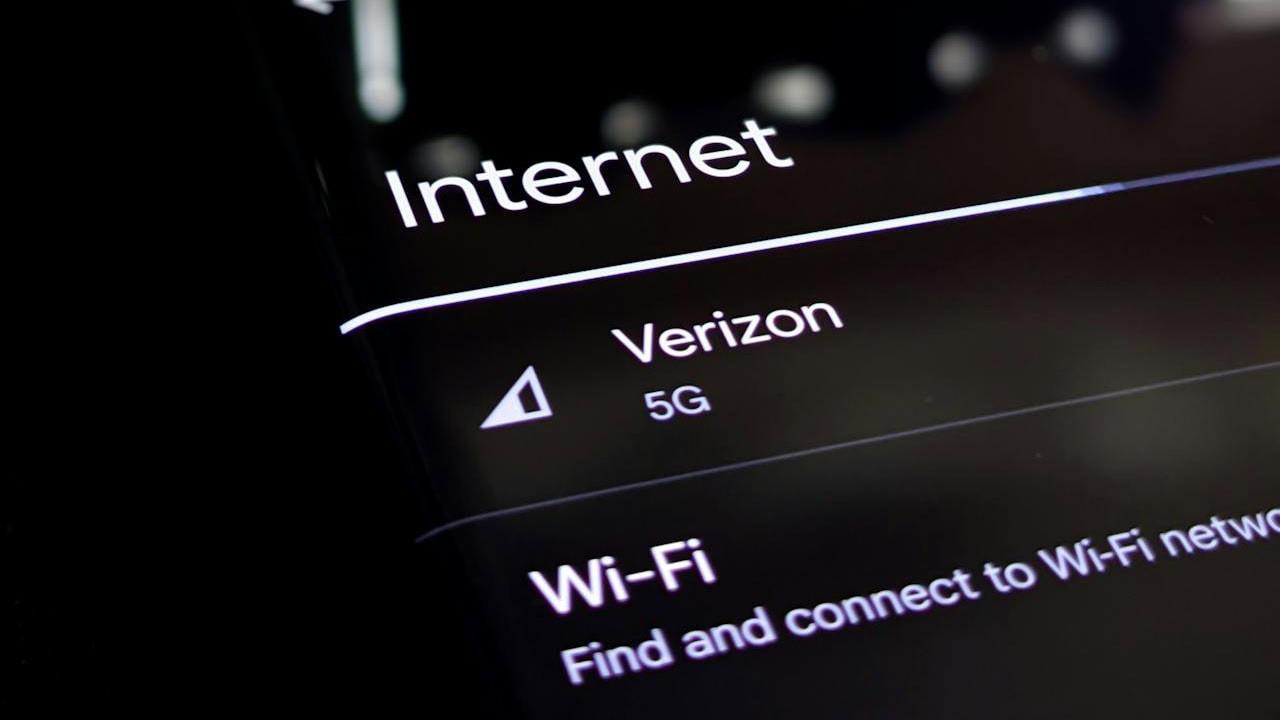
This feature is supposed to help by keeping your connection stable-but it often does the opposite for your data. When your Wi-Fi signal weakens, your phone automatically switches to cellular data without warning.
Turn off "Wi-Fi Assist" on iPhone or "Smart Network Switch" on Android. If your Wi-Fi lags, you'll notice it, but at least you'll stay in control of when you use mobile data.
App analytics and diagnostics
Both your phone and your apps collect usage data to "improve performance." That information gets sent over the internet automatically, often using your mobile plan.
You can safely turn off most analytics and diagnostic sharing without affecting how your phone works. Look for settings like "Send Usage Data" or "Improve App Experience" and disable them. It keeps your data for what you actually need-not for sending reports you'll never see.
*This article was developed with AI-powered tools and has been carefully reviewed by our editors.






Leave a Reply